YouTube Music
MusicAPI holds the YouTube Music credentials used to authenticate your listeners. They are used solely to facilitate music transfers a listener has authorised, the same way FreeYourMusic works. You do not need a YouTube Music developer account, and you never store YouTube Music tokens.
Enable YouTube Music
- Open the MusicAPI Developer Dashboard and go to Integrations.
- Mark YouTube Music as Enabled so listeners see it as an option.
- Use the Test YouTube Music button to run the login flow once with your own account.
Listeners see your business name and logo on the authorisation screen. Set both under Account in the dashboard.
Redirect listeners to YouTube Music
To open the YouTube Music authorisation flow directly:
Or let listeners pick from every service you enabled:
After authorisation the listener returns to your returnUrl. See Authentication Callback for the payload.
YouTube Music specifics
- There is no official YouTube Music API. YouTube Music playlists and liked songs are YouTube playlists, read and written through the YouTube Data API.
- Video-only and user-uploaded items return an explicit unmatched reason instead of being silently omitted.
- The YouTube Data API has a daily quota per Google project. MusicAPI manages that quota for you.
Advanced: use your own YouTube Music developer app
You do not need this for a standard integration. Use it only when you already run a YouTube Music developer app and want listeners to authorise that app instead of the MusicAPI one.
Steps for your own YouTube Music app
-
In the Google API Console click Create project.
-
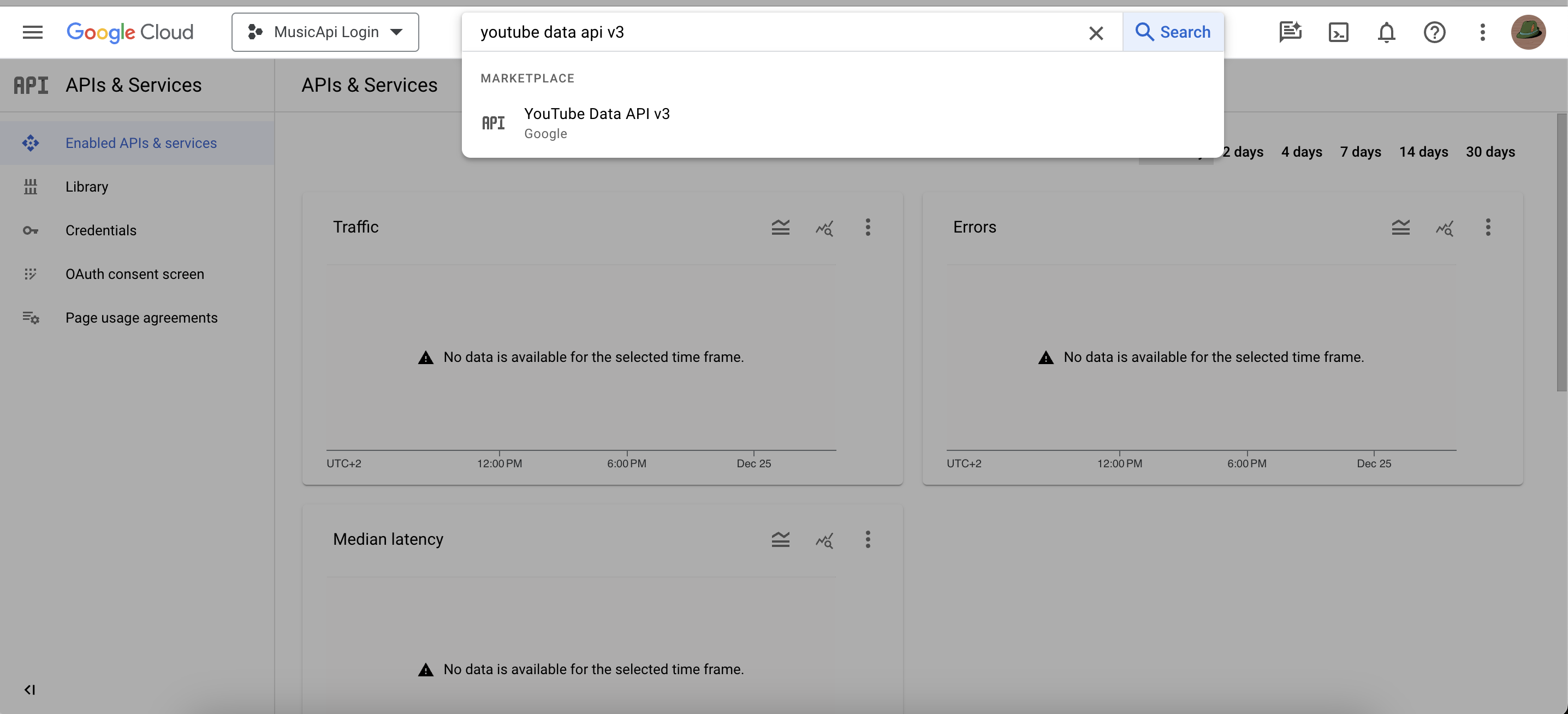
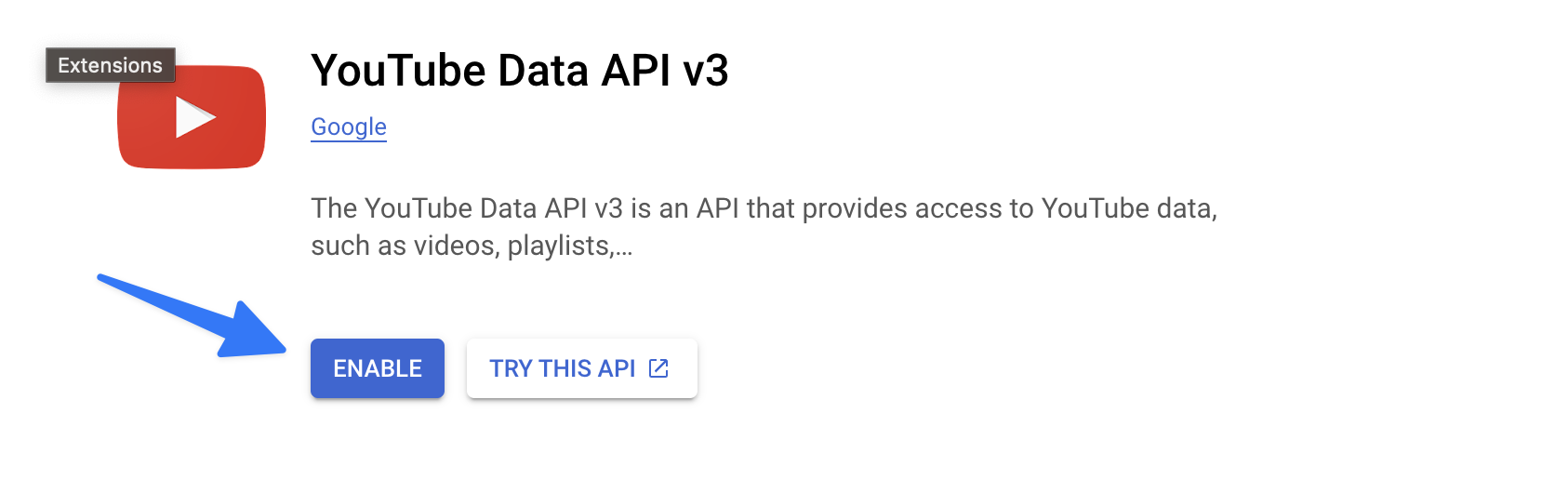
On the Enabled APIs page click ENABLE APIS AND SERVICES, search for "YouTube Data API v3" and enable it.
-
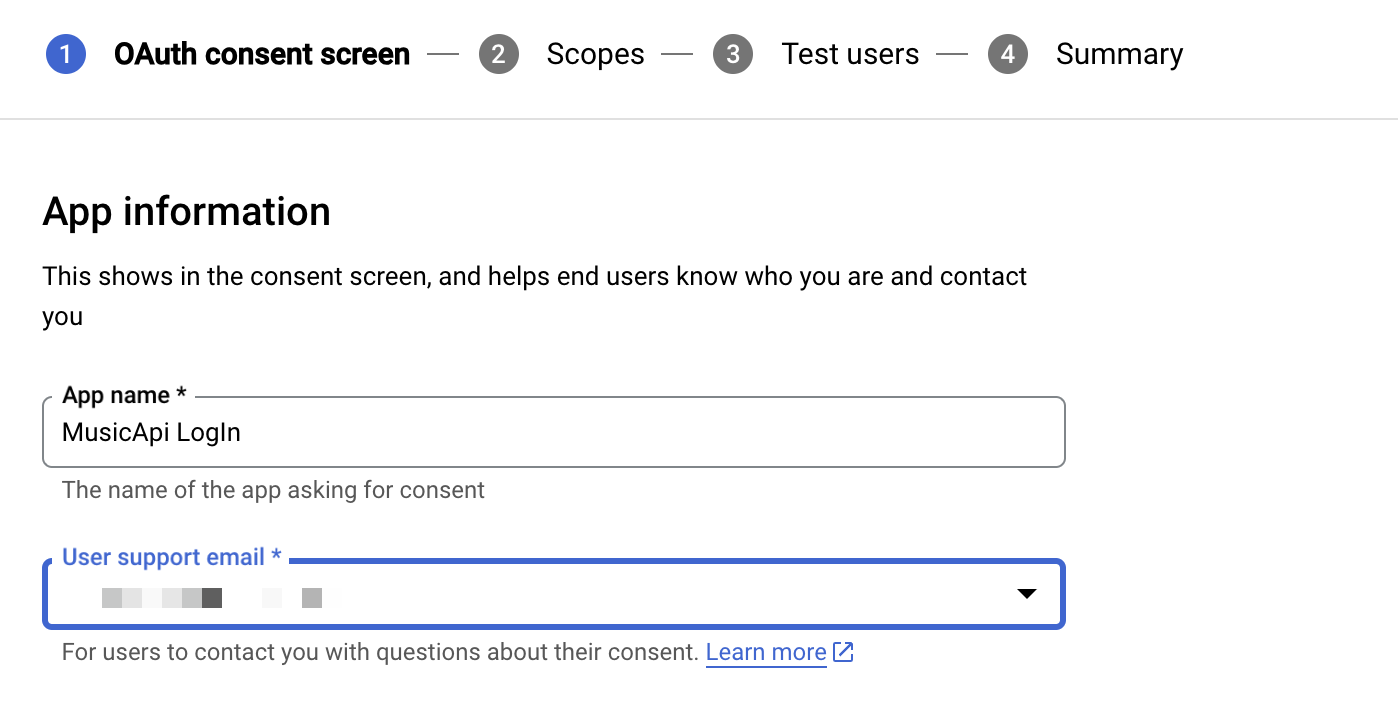
Open OAuth consent screen, pick the user type, set the app name and a developer contact email.

-
Click ADD OR REMOVE SCOPES and add:
-
Add Test Users while the app is unverified.
-
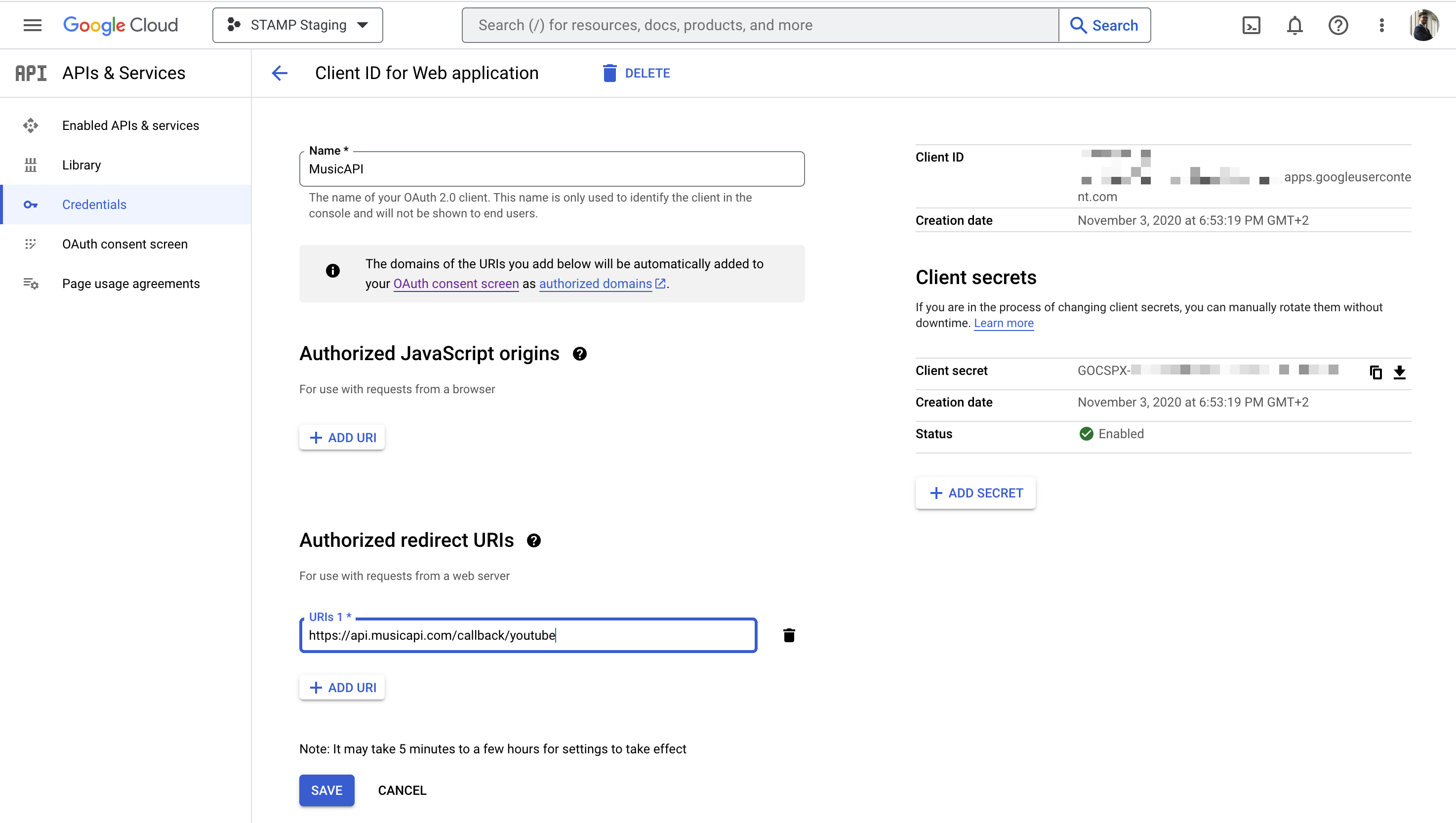
Go to Credentials, click Create Credentials → OAuth client ID, choose Web application, name it (for example "MusicAPI Login") and set the Redirect URI to exactly:
-
Copy the Client ID and Client Secret.
Then, in the MusicAPI Developer Dashboard, open Integrations, paste the credentials into the YouTube Music integration and save.